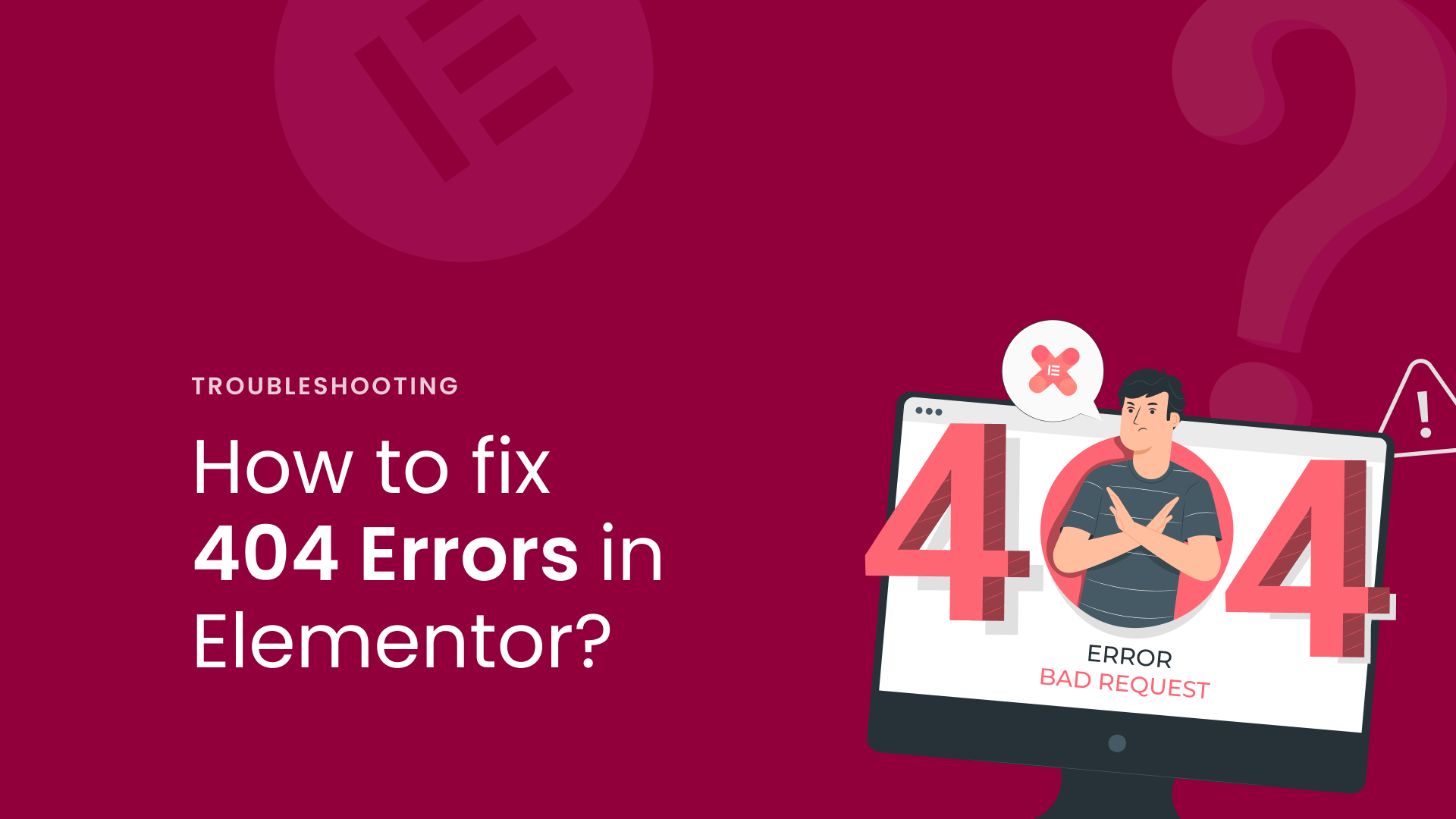
Sarah reached out to us because she was frustrated with her recently launched WordPress site. Some pages were showing 404 errors, even though everything had worked perfectly on her local server.
After some quick checks, we found that her permalinks and static links had not been updated correctly on her live server. A common issue that WordPress users face.

We quickly resolved Sarah’s problem, and now we will guide you through the steps you can take to solve it on your own.
So let’s get started!
Why Do 404 Errors Happen?
When you move your WordPress site from a local to a live server, some pages’ links are dynamically updated, while static links remain unchanged. For example:
- Local URL: http://localhost/blog/sample
- Live URL: https://live.com/blog/sample
If the links are not properly updated, WordPress will be unable to find the corresponding pages on the server, resulting in 404 errors.
Other common causes are:
- Corrupted .htaccess files
- Incorrect file or folder permissions
- Deleted pages or post
- Conflicts with plugins or themes
Now, let’s move on to the solution:
Solutions to Fix 404 Errors in WordPress
Cache Issues
Her browser and caching plugin had cached the old permalinks, and the updated URLs weren’t showing.

Solution: Clear both the browser cache and the cache of the caching plugin. Also, make sure the server-side cache has been cleared, as this will resolve the 404 errors permanently.
Update the Permalink Structure
Sometimes, refreshing your permalink settings resolves the issue.
- Go to Settings > Permalinks in your WordPress dashboard.

- Select your preferred structure (e.g., “Post Name”) and click Save Changes.

Restore the .htaccess File
- Use your hosting file manager to locate the .htaccess file in your root directory.

- Rename it (e.g., .htaccess_backup) and save a new one with the following default rules:
# BEGIN WordPress
RewriteEngine On
RewriteBase /
RewriteRule ^index\.php$ – [L]
RewriteCond %{REQUEST_FILENAME} !-f
RewriteCond %{REQUEST_FILENAME} !-d
RewriteRule. /index.php [L]
# END WordPress
Check File and Folder Permissions
Incorrect permissions on files or folders can cause 404 errors.
- Verify that your website’s files and directories have the correct permissions.
- The recommended settings are:
- Folders: Permission should be set to 755.
- Files: Permission should be set to 644.
Disable Plugins and Themes
A plugin or theme conflict could be causing the error.

- Deactivate all plugins and switch to a default theme, such as Twenty Twenty Three.
- Check if the issue persists. If not, reactivate plugins/themes one by one to identify the culprit.

Update Your WordPress URLs:
If your site URLs didn’t update properly during migration, this could lead to broken links or 404 errors.
To fix this:
- Navigate to Settings > General in your WordPress dashboard.

- Check the WordPress Address (URL) and Site Address (URL) fields.

- Ensure both URLs match your live site’s domain (e.g., https://example.com).
Save your changes, and this should resolve any issues caused by incorrect URLs.
How 404 Errors Affect Your Website
- Broken links can reduce your search engine ranking.
- If your site contains 404 errors, visitors are more likely to leave.
- Frequent 404 errors can make your website seem unprofessional and unreliable.
Sarah fixed her 404 errors by refreshing her permalinks. Her website now runs smoothly, and visitors can access all pages without difficulty.
If you get 404 errors, do not worry. With these solutions, you will be back on track in no time!
Have you faced a 404 error recently? Please share your experience or tips in the comments section below.