

newelementor

Pro Widget

Elementor Google Maps Widget

Showcase single or multiple locations with custom markers, street view & more on your WordPress website. Style your Maps widget in an elegant way with hover effects, CSS filters & tooltip styling.

Get Pro Addons
Documentation
 

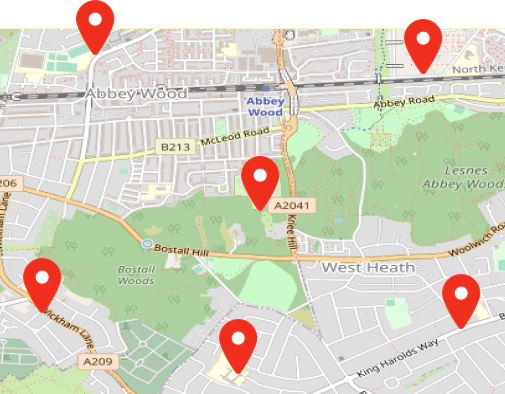
Add Custom Markers with Multiple Locations

Upload any image as a marker on your Google Maps widget & fully personalize the user experience.

Feature 01

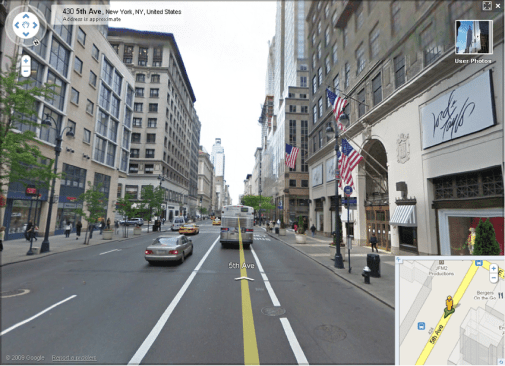
Enable Street View for Enhanced Location Visualization

Use our dynamic street view feature for Google Maps & provide an exclusive view to visitors.

Feature 02

Zoom-In Your Locations to Facilitate Visitors

Adjust the zoom in/out for your maps view and enhance your location visibility.

Feature 03

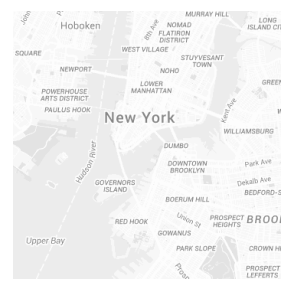
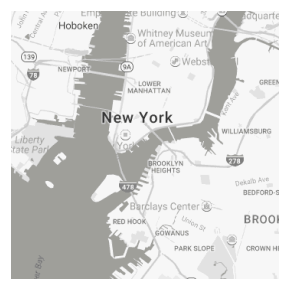
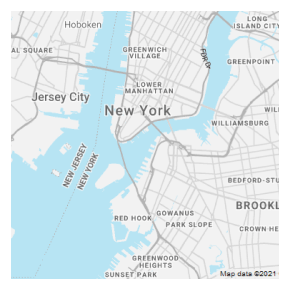
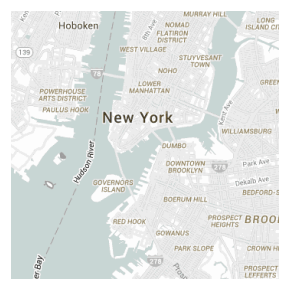
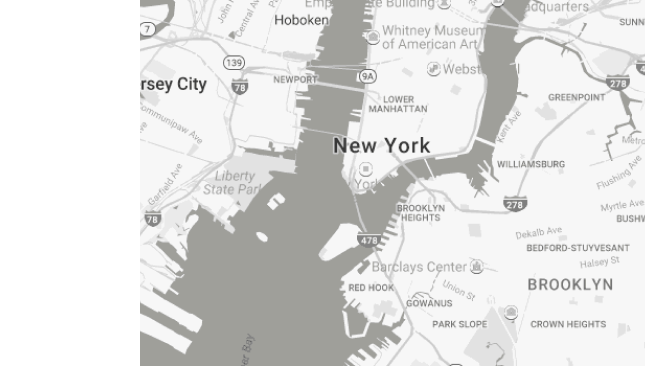
Fully Style Google Maps using Snazzy Maps

Add JSON code to customize and design Elementor map plugin templates that match your web design.

Ultra Light With Labels

Subtle Grayscale Style

Interface Map Style

Modest Style

Customize Your Elementor Google Maps Widget As You Want

Our premium WordPress Map plugin lets you style your locations’ map with hover effect, CSS filter, map skins & more.

Feature 04

Customize Your Map Height The Way You Like

Design beautiful map layouts by tweaking the height of your Elementor map plugin.

Feature 05

Display All Location Markers By Adjusting Map with Zoom Controls

Engage visitors by showing all of your store/business locations in one go.

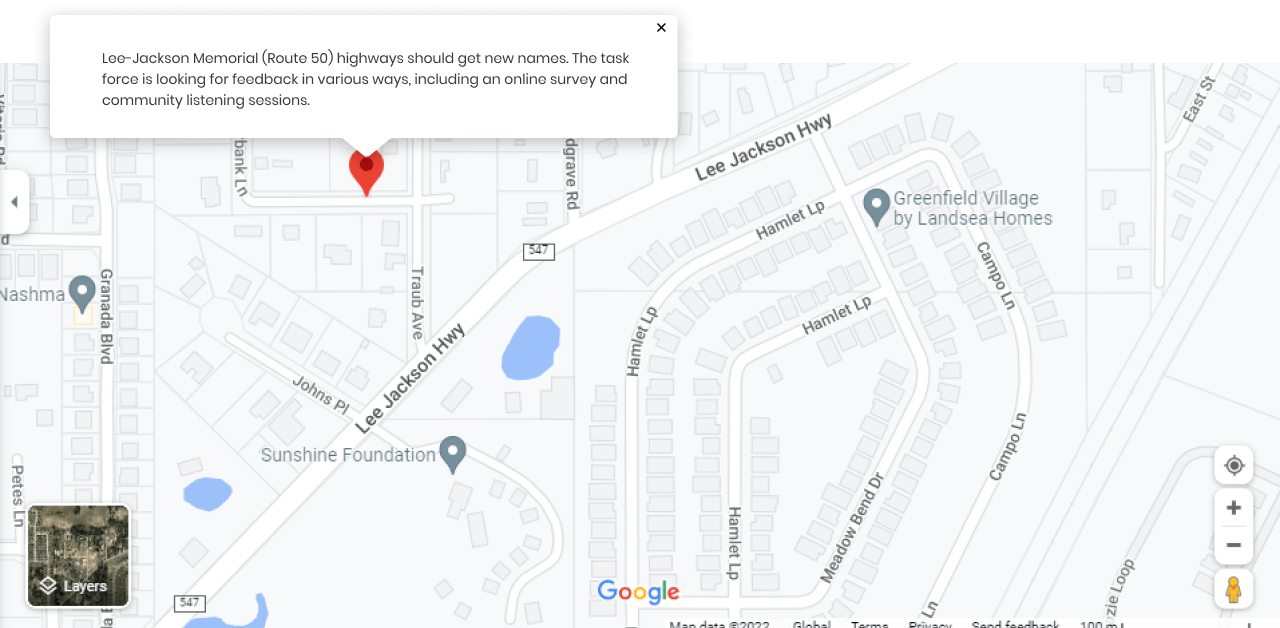
Style Your Elementor Google Maps widget with Personalized Tooltip

Choose from a wide range of styling options and make your maps widget complement your web design in all aspects.

Get Help From Our General Knowledge Base

What is the Maps Widget Elementor?

The  WordPress Map plugin is an amazing plugin that highlights multiple location pins on a map. You can showcase your business location on the Xpro Elementor Google Maps widget so the user can easily reach or contact you. You can interactively customize your WordPress Map plugin with multiple tooltip styling options, hover effects, and CSS filters.

You can also style your map with snazzy maps by adding JSON code and designing templates to match your website.

How to create an interactive map in WordPress?

You can create an interactive map in WordPress using our Elementor Google Maps Widget. You can display locations & pin your office address or any of your business to direct your customers. Simply Drag & Drop the Maps Widget onto the desired page and customize it according to your website needs.

Not only this, but you can add extra efficiency to your Google Maps with our Image Map Hotspot Widget.

How do I add multiple locations on a map with the WordPress Map plugin??

Step 1: Download and activate Xpro Elementor addons 

Step 2: Enable the Xpro Elementor Google Maps widget

Step 3: Add a ‘New Page’ or edit the existing one 

Step 4: Drag & drop the Maps widget

Step 5: Navigate to the 'Content tab', go to 'Markers'

Step 6: Add multiple locations

Step 7: Customize and style


How can I change locations on the Elementor Map plugin?

If the Xpro Elementor maps widget has already been added to your web page, you can edit your address by clicking the Edit button in the upper right corner of the Maps widget and edit it in no time.

Our Blogs

Discover The Latest From Xpro Elementor Blogs

4 Best Elementor Theme Builders of 2022 (Free & Paid)

Have you ever tried to edit a default theme part like header, footer, singular, or archive template and failed to do so? It’s because...

Read More
author-avatar
Posted By Laiba Rasheed

Download 50+ Free Addons & Start Creating

30,000+ Happy Customers Build Beautiful Websites Using Xpro Elementor Addons