




newelementor

Pro Widget

Elementor Draw SVG Widget

Get more creative and draw animation on any SVG element on your website. Add loop, hover effect, shadow & much more.

Get Pro Addons
Documentation


Create Visually Appealing Content That Speaks Volumes

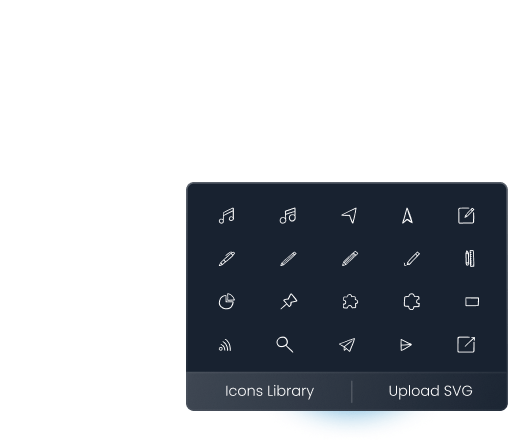
Personalize Experience By Using Custom Stroke SVG Icons

Leave a lasting impression on your site visitors by animating any SVG of your choice. Apply one-time draw or on hover draw as you like.

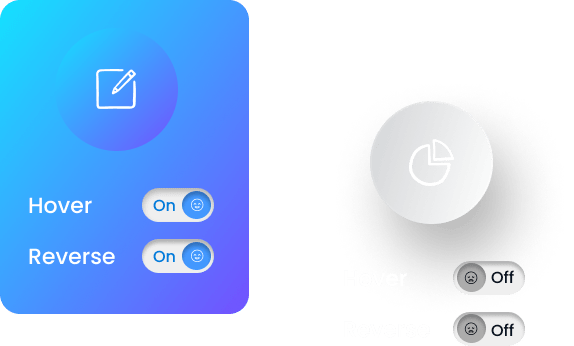
Add Hover & Reverse Animations

Make your SVG animation draw up once the visitors hover over the text or icons. You can also apply reverse draw effect.

Creative Elementor Widget for A Great Visual Experience

Our Elementor SVG animation widget is full of exciting styling options that you can use to customize SVG icons as you like.

Twitter

Instagram

Facebook

Make Your SVG Draw Up In Specific Seconds

Set the time limit for your SVG animations to draw up on your website. You can weak the duration for draw on hover.

Use Stagger To Set Delay Time for Individual Paths

Set the limit of stagger option and tweak the time for individual paths to complete. Make your SVG icons more pleasing.

Apply Exciting Colors To Your SVG Animations

Our premium SVG animation widget for Elementor lets you add branded colors to your SVG icons or text.

Twitter

Instagram

Facebook


Explore our Best Elementor Widgets

Elevate your web design experience with our powerful widgets for Elementor.

Get Help From Our General Knowledge Base

What is SVG in Elementor?

SVG stands for Scalable Vector Graphics. The SVG Draw Elementor Widget allows you to easily select and animate any Font Awesome icon on your Elementor page without writing any custom code. Unlike regular images (like JPEG or PNG), SVGs can be resized without losing quality, making them perfect for responsive design.

What is the purpose of SVG in elementor?

Animated SVG icons can capture the attention of your site visitors and increase engagement. SVGs can be resized without losing quality, ensuring that graphics look sharp on all devices, from mobile phones to large desktop screens. SVGs also support interactivity and animation, making them versatile for creating engaging and responsive web designs.

How do I add a Draw SVG widget to my Elementor page?

To add a Draw SVG widget to your Elementor page, follow these steps:

  • Open your Elementor editor.
  • Search for "Draw SVG" in the widget panel.
  • Drag and drop the Draw SVG Widget onto your desired section.
  • Upload your SVG file and customize the animation settings as needed.

For more details, you might check out our latest guide on How to Install the Draw SVG Widget for Elementor.

 
Our Blogs

Discover The Latest From Xpro Elementor Blogs

4 Best Elementor Theme Builders of 2022 (Free & Paid)

Have you ever tried to edit a default theme part like header, footer, singular, or archive template and failed to do so? It’s because...

Read More
author-avatar
Posted By Laiba Rasheed

Download 50+ Free Addons & Start Creating

30,000+ Happy Customers Build Beautiful Websites Using Xpro Elementor Addons